
The minimap
The square map in the corner: turning, zoom, the lines under it, and when it steps away.
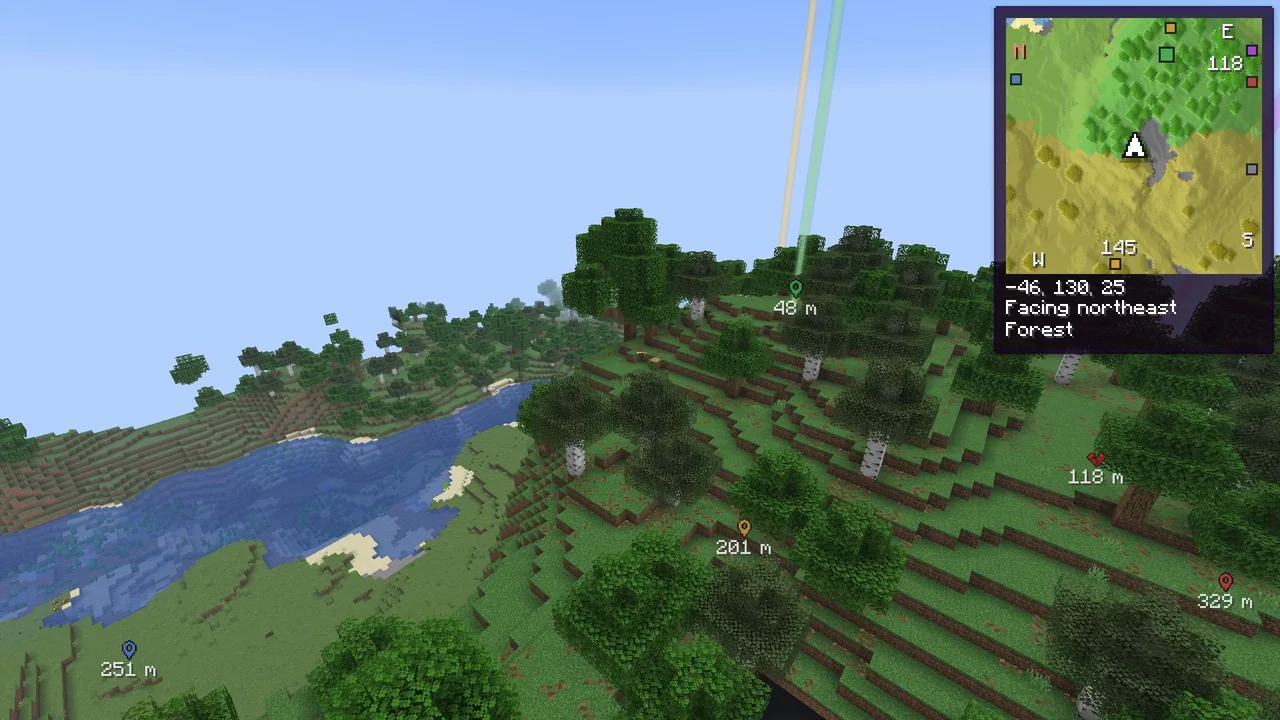
A square map in the corner that turns with you, on a soft shadow so it sits loose from the world. New ground fades in as you explore, and underground it fades over to the cave you are in.
Turning or north up #
By default the map turns so the way you face is always up, with N on the edge pointing north, in red. Turn off Turn with me and north stays up while the arrow turns. Compass letters shows or hides N, E, S and W.
Zoom and enlarge #
- [ zooms out and ] zooms in, from far out to close.
- Hold Z for a big minimap in the middle of the screen, without opening the world map. Let go and it goes back.
Lines under it #
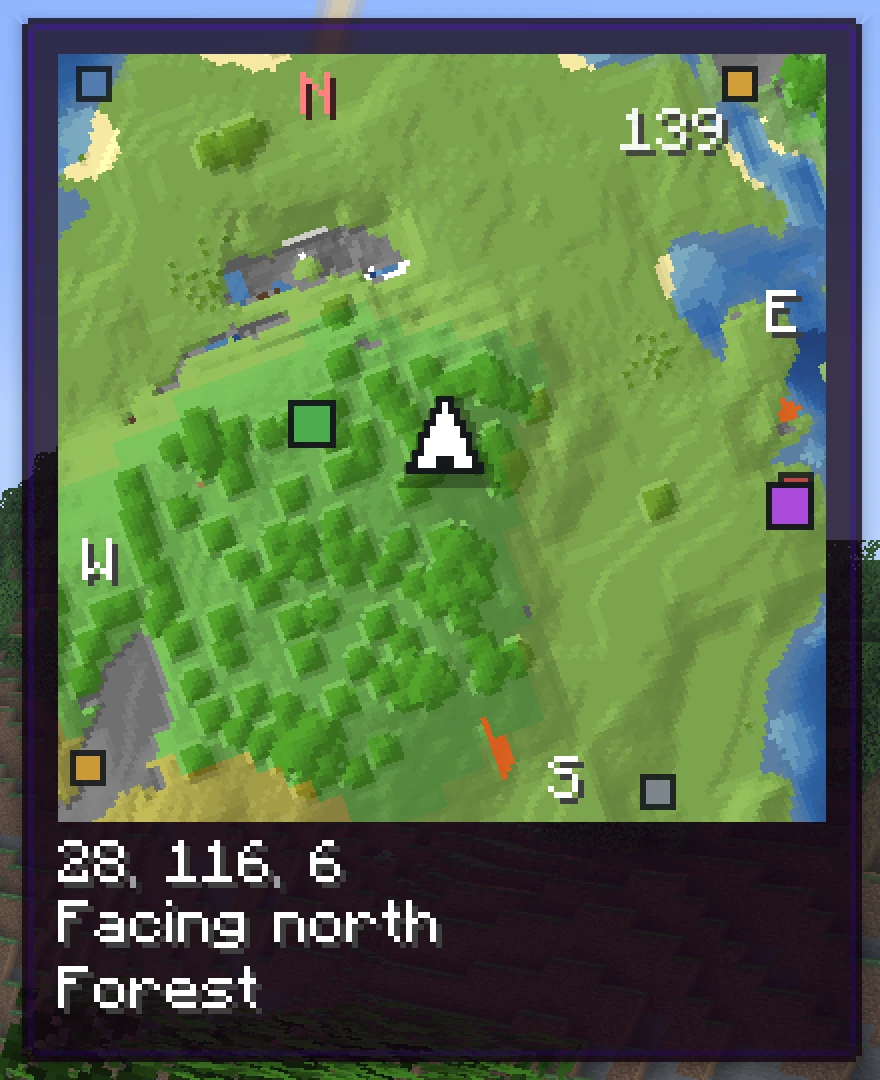
Each line is a switch of its own under Lines under the map on the settings' Minimap tab. The digits of the coordinates stay in fixed places, so they don't jump as they count.
| Line | Shows | Default |
|---|---|---|
| Coordinates | Where you are: X, Y and Z | On |
| Direction | The way you face: north, southeast and so on | Off |
| Time of day | The time in the world as a clock: 6:00 is sunrise, 18:00 sunset | Off |
| Biome | The biome you stand in | Off |
| Other side of a portal | In the Overworld, where you would be in the Nether, and the other way round | Off, under More lines |
| Light level | The block light where you stand; yellow at 0, where mobs can spawn | Off, under More lines |
| Day count | How many days the world has been going; the first day is day 0 | Off, under More lines |
| Speed | Blocks a second while flying, gliding or riding | Off, under More lines |
When it steps away #
- In an inventory or another menu (Hide in menus). Chat keeps it.
- While you hold Tab for the player list (Hide while the player list is open).
- With F1, with the rest of the HUD.
- A key of your own shows or hides it: Show or hide the minimap, not set by default. See Keys and commands.
Potion effect icons move to its left instead of pushing it down, and game notifications such as advancements slide in below it.
Move, resize, another corner #
- Open the settings:
/charted config, or Charted in Mod Menu. - Go to the HUD tab and open the layout.
- Drag the minimap where you want it, or resize it from its edge.
- Show the minimap default On
- The small map in the corner of the screen.
- Turn with me default On
- The map turns so the way you face is always up.
- Compass letters default On
- N, E, S and W on the edge, north in red.
- Opacity default 100%
- Lower lets the world show through.
Next, you may want to
Something missing or wrong on this page? Say so on Discord.