The editor
Select part of the world and save it as a schematic, or place a build with the mouse.
The camera #
Press B to open the editor. The camera comes loose and flies, and your player stays where it was. That way you can look at a build from all sides in survival.
| Key | Action |
|---|---|
| WorAorSorD | Fly |
| Space | Up |
| Shift | Down |
| 1-7 | Pick a tool. The scroll wheel works too |
| H | Show or hide the controls |
Tools #
| Key | Tool | Left click | Right click |
|---|---|---|---|
| 1 | Select | Click two corners. Shift-click starts another region. | |
| 2 | Resize | Drag a corner arrow. | Deselect the corner. |
| 3 | Save | Save as a new schematic. | |
| 4 | Place | Drop the build where you aim. | Bring it to you. |
| 5 | Move | Drag an arrow to move. | Bring it to you. |
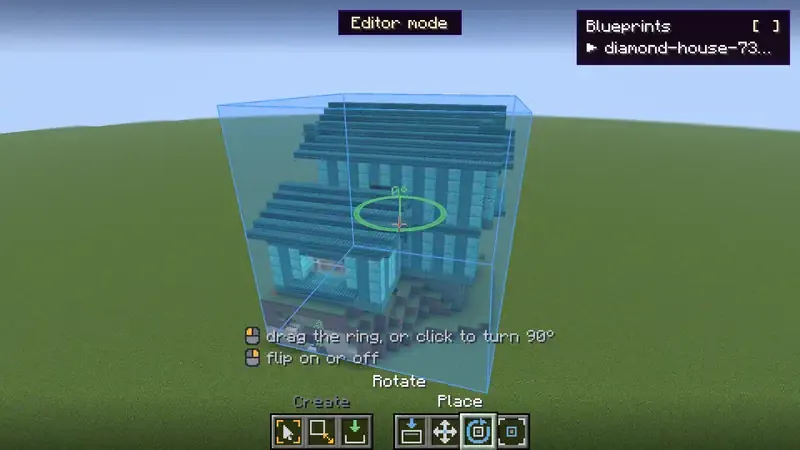
| 6 | Rotate | Drag the ring, or click to turn a quarter. | Flip on or off. |
| 7 | Auto align | Line it up with the world. | Stop searching. |
| Key | Action |
|---|---|
| [or] | Previous or next region |
| Delete | Delete the selected region |
Save a schematic #
- With Select, click two blocks to make a box.
- With Resize, drag the corners until the box fits. The handles snap to blocks and show through terrain.
- Shift-click with Select to add another region to the same schematic.
- Choose Save, give it a name and an optional description.
- Quick Export saves into
schematics/. Save As... lets you choose a folder.
The file holds blocks, chests and signs with what is in them, and entities. After saving, the selection is cleared. Load the file from the Local tab when you want to build it.
On a server your game does not know what is inside a chest until you open it, so a schematic saved there can miss chest contents. If chunks were not loaded, the game tells you the copy has gaps. Move closer and save again.
A server can turn off saving schematics of its world. Loading your own schematics still works there. See Servers.
Something missing or wrong on this page? Say so on Discord.