The ghost
How the build is drawn in your world and what you can change about it.
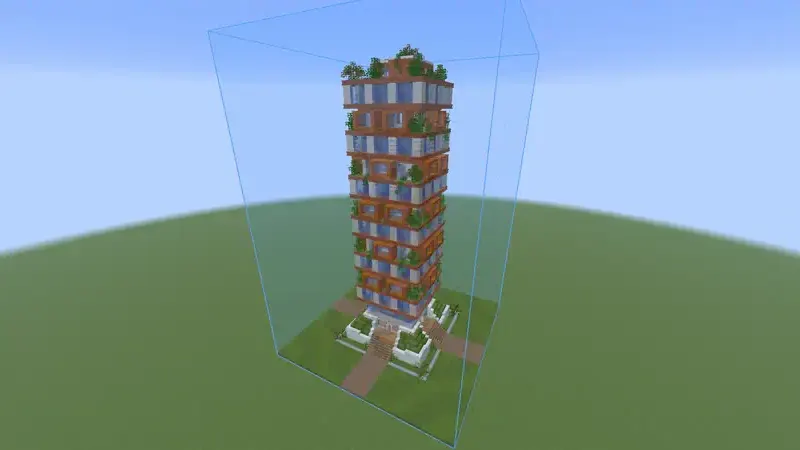
What is drawn #
- Blocks with their real models and states, including blocks from other mods.
- Leaves, glass, water and lava look the way they do in the world.
- Chests, signs with their text, shulker boxes and banners.
- Decoration made of entities: armor stands, item frames, paintings, displays, minecarts and boats.
Mobs such as villagers and animals in a schematic are not drawn.
How far it draws #
The ghost draws as far as your render distance, measured across the ground as the world is, so a tall build shows all the way to the top. For a build bigger than your render distance, set Ghost distance further, up to 1024 blocks. It is in the Performance tab of the settings, under Distances. All the way left it follows your render distance again. With Adapt to frame rate on, the ghost draws a little less far while the frame rate is low, and goes back to its full distance once it recovers.
Where you already placed the right block, the ghost is not drawn: you see your own block.
Settings #
In the Rendering tab of the settings, under Ghost and Ghost appearance. The picture at the top of the tab shows the ghost as the settings draw it.
- Ghost opacity default 85%
- How see-through the ghost is.
- Tint the ghost default On
- Pulls the whole ghost toward one color, so it is easy to tell from real blocks.
- Tint color default Blue
- The color the ghost is tinted toward.
- Tint strength default 30%
- How strongly the ghost is tinted. Every block keeps its own light and dark.
- Vanilla face shading default On
- Shades faces by direction like the game does.
- Skip hidden faces default On
- Only draws faces on the outside. Faster.
- See through solid blocks default Off
- Draws solid ghost blocks like glass, so a wall behind a wall of the same build shows.
- Entity render distance default 64 blocks
- How far away chests, signs and entities of the ghost are drawn.
Hide it, or the box around it #
 next to a build in the Loaded tab hides it, and shows it again. next to the search box does that for every build. The keys for it are on Loading schematics.
- The blue box around a build is its bounding box: the edges of the space the schematic takes up, so you see where it goes. It has no setting of its own. It goes when you hide the build, or when you select it and click Remove. The file stays.
- Blue outlines on single blocks are Outline missing blocks. See Outline missing blocks.
Hide the water or air in a build #
- Water in a schematic has its own row in the Material list, Water. Click on it to hide the water in the world. Easy place and the printer then skip it too. Click it again to show it.
- To leave the water out of the build for good, set View to As built, click
 on that row and pick Don't build it. See Swap materials. Save as a file at the bottom of the list keeps a copy without it.
- Air is never drawn. A purple mark is a block standing where the build wants air. To stop those marks, see Turn off the extra marks.
Resource packs and shaders #
The ghost uses your resource pack, and shows under Iris shader packs. Players have tested it with Complementary, BSL, Bliss, Photon and I Like Vanilla, also on very large builds and together with Voxy and Better Clouds. The pack does not light or shadow the ghost: it is drawn on top of the finished picture. Heavy fog in a pack, as in BSL, makes it look more see-through in the distance.
Next, you may want to
Something missing or wrong on this page? Say so on Discord.