
Loading schematics
The Local tab, the file formats BuildPrint opens and the other ways to load a file.
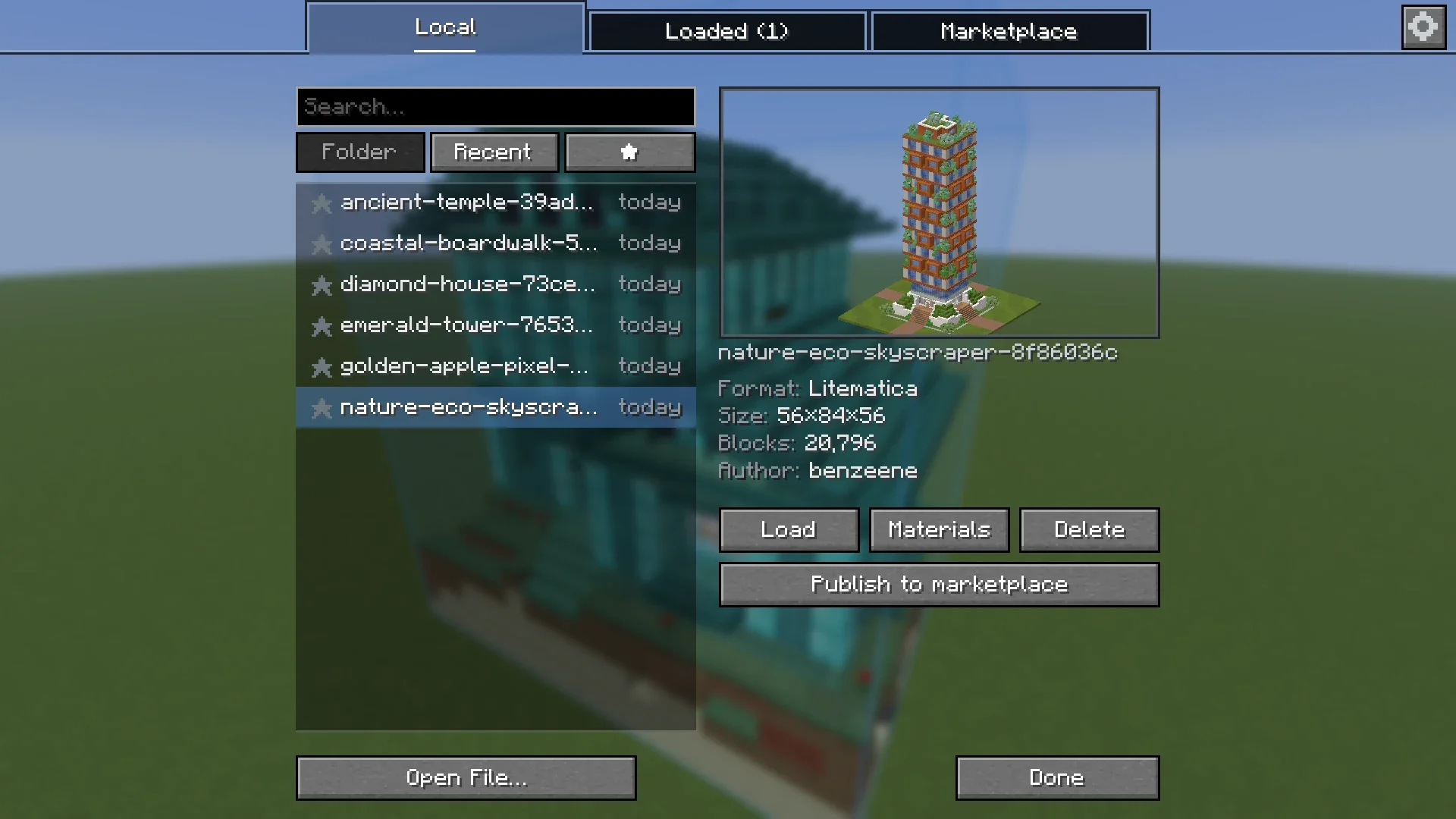
File formats #
| Format | Extension | Open | Save |
|---|---|---|---|
| Litematica | .litematic | Yes | Yes |
| Sponge schematic (versions 1, 2 and 3) | .schem | Yes | No |
| Classic schematic | .schematic | Yes | No |
| Vanilla structure | .nbt | Yes | No |
| Axiom blueprint | .bp | Yes | No |
Whatever you open, BuildPrint saves as .litematic. It has no file format of its own.
The Local tab #
- Shows the
schematics/folder in your Minecraft folder, with its subfolders. Each folder shows how many schematics are in it. - Search looks through all subfolders by name.
- Recent lists the files you opened last. The star adds a file to your favorites.
- Files you add or remove on disk show up in the list right away.
- Select a file to see its size, block count, author and a 3D preview. Drag to turn the preview, scroll to zoom, shift-drag to move it.
- Delete removes the file from disk. Click it twice to confirm.
Other ways to load #
- Open File... opens the file picker of your system, for a file outside the schematics folder.
- Drop a file onto the game window. It loads into the world directly.
- Click Place on a build in the Marketplace.
- Join a session. The builds in it load for you.
Several builds at once #
You can load as many builds as you like. Each has its own position, layer view and material list, and can be hidden with the eye in the Loaded tab.
Remembered per world #
Loaded builds are saved per world and per server, and come back when you join again. On a server this is kept per address and dimension. Two single-player worlds with the same name are kept apart. See Servers for servers with several worlds behind one address.
Something missing or wrong on this page? Say so on Discord.